Marvis
Understand what Marvis can and cannot do with AnyRouter.
Marvis is an OS-level AI assistant from Tencent. Its public website offers downloads for Windows, macOS, and Android, and describes features such as local file search, image understanding, app control, multi-device access, and a local mode.
As of this writing, the public release of Marvis does not expose any verifiable API Base URL, API Key, or OpenAI Compatible Provider settings. So do not paste your AnyRouter API Key into a Marvis chat. For development work that needs a custom API, use clients that already support one, such as Codex, Claude Code, Kilo Code, or OpenCode.
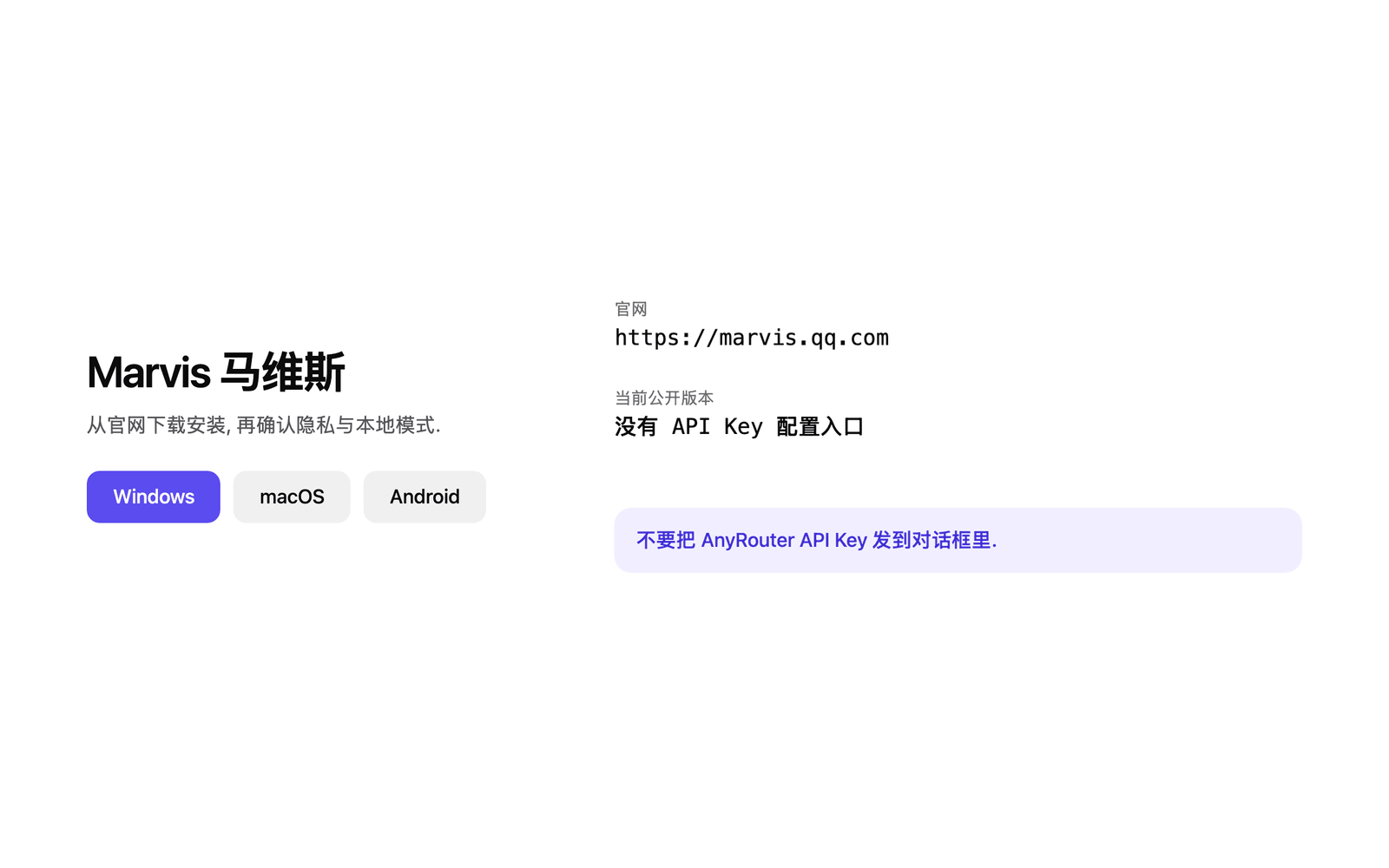 Download and install entry for the public release of Marvis
1. Download and install Marvis
Go to the Marvis website.
https://marvis.qq.comChoose the installer for your system:
- Windows: use the Windows download on the website.
- macOS: use the macOS download on the website.
- Android: use the Android download or QR code on the website.
After installing, open Marvis and sign in as prompted by the client.
2. Check the working mode
According to the Marvis website, it supports local document and image search, controlling apps with natural language, a local mode, and multi-device access. Before working with sensitive files, check the privacy and local mode options in the settings page of your current Marvis version.
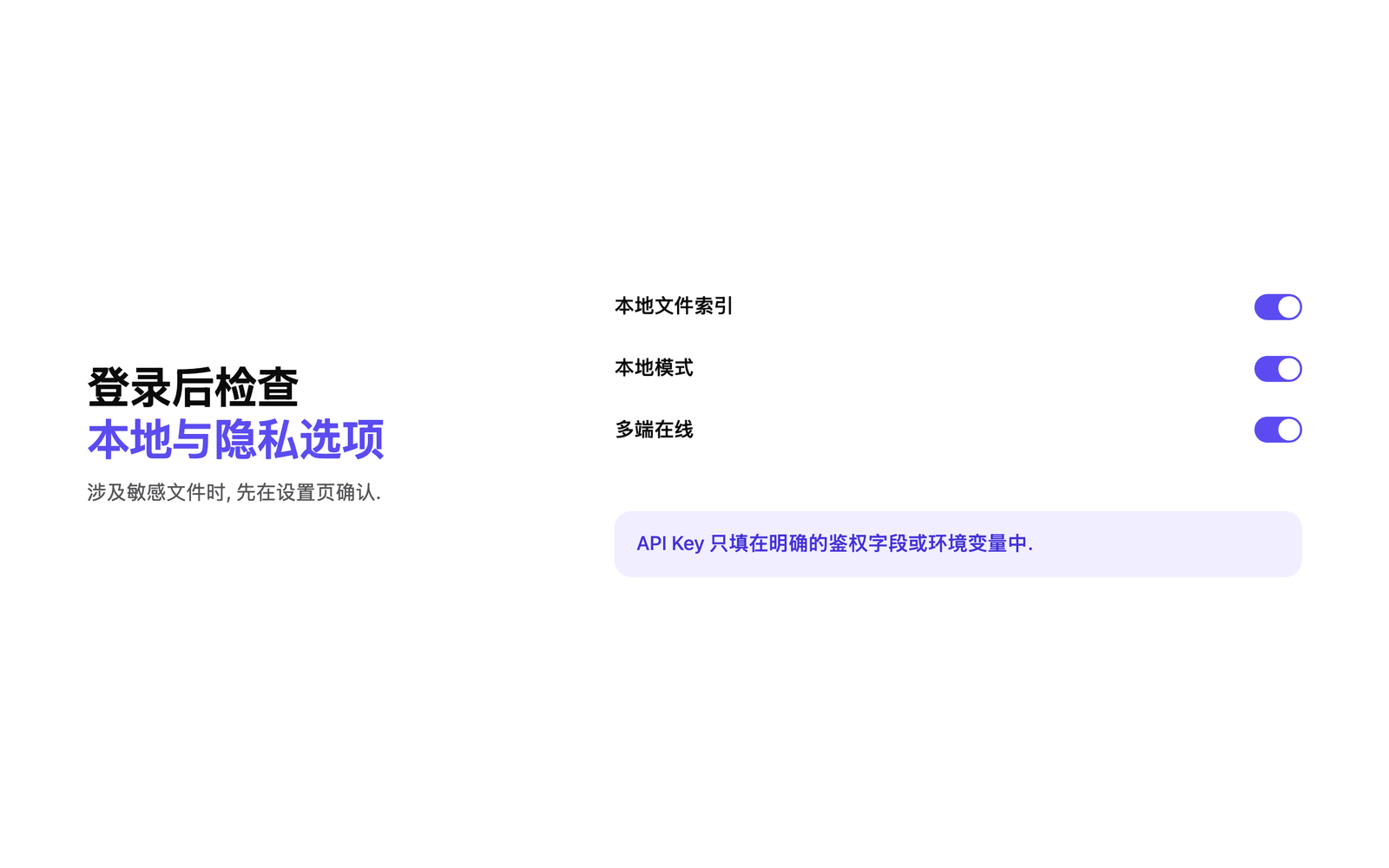 Check local mode and privacy options after signing in to Marvis
3. How it relates to the AnyRouter API
The current public release has no place to enter a AnyRouter API Key directly. Follow these rules:
- Do not send your AnyRouter API Key to Marvis as chat content.
- When you need a coding assistant to go through the AnyRouter API, use Codex, Claude Code, or one of the other app guides listed here instead.
- If Marvis adds OpenAI Compatible or custom API Provider settings in the future, fill in the AnyRouter parameters field by field.
If custom API settings appear in the future, the fields would typically be:
Provider: OpenAI CompatibleAPI Base URL: https://ai.cloudtay.com/v1API Key: <your AnyRouter API Key>Model: gpt-5.5After filling them in, use the client's built-in connection test or send a low-risk test message to confirm that authentication and model selection both work.
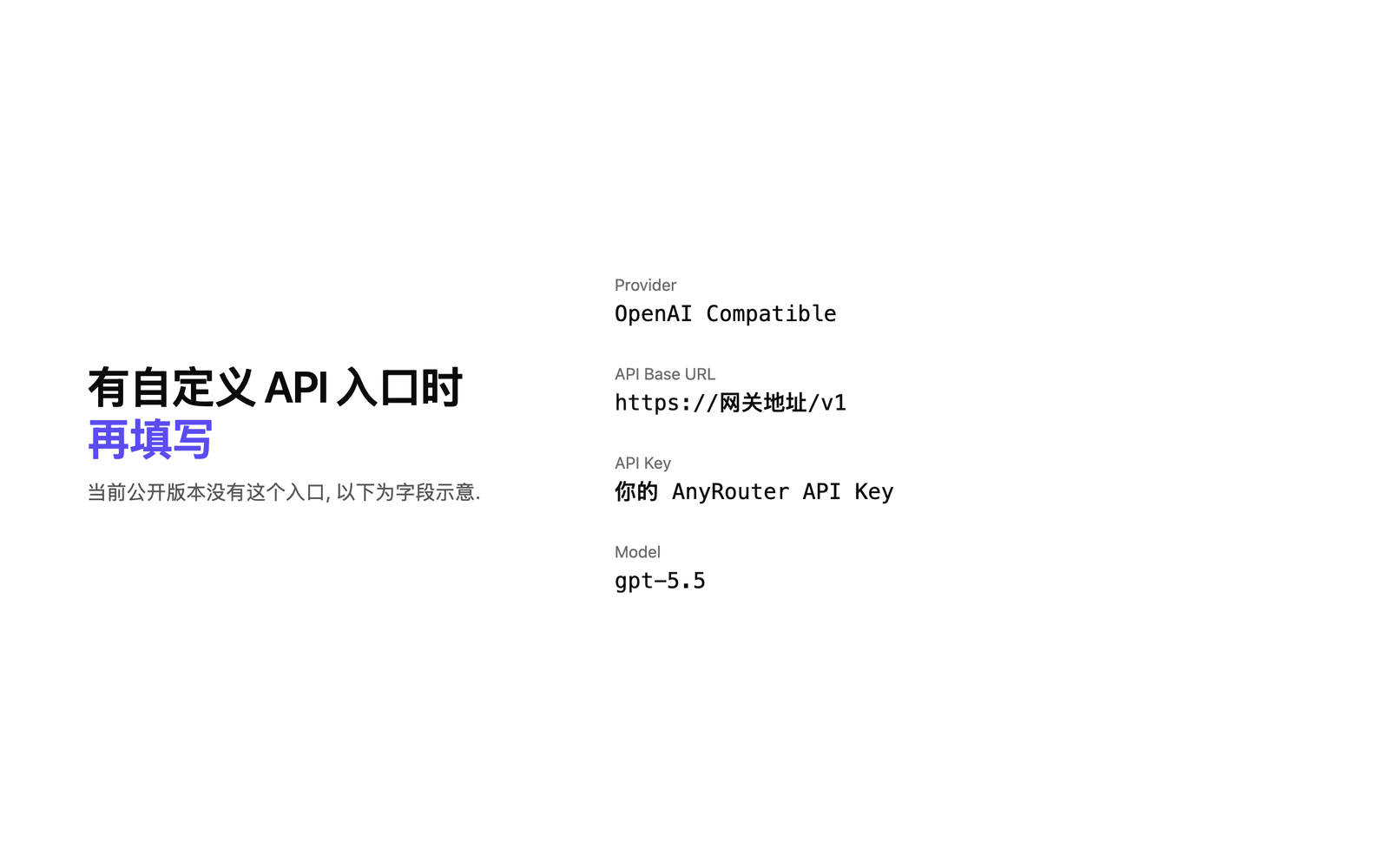 Example of filling in the fields if Marvis adds OpenAI Compatible settings in the future
FAQ
- Can Marvis be configured with AnyRouter directly? The public release has no verifiable custom API settings, so this guide does not cover direct setup for now.
- Can I send my API Key to Marvis and let it configure things for me? Not recommended. An API Key should only go into a dedicated auth field or an environment variable.
- I want Marvis to manage local files but my coding assistant to use AnyRouter: Marvis handles desktop and file assistance, while model requests in code projects go through Codex, Claude Code, or another client that supports a custom API.