Codex
Configure AnyRouter in Codex CLI and Codex Desktop.
Codex CLI and Codex Desktop read the same local configuration. Add AnyRouter to ~/.codex/config.toml, then launch Codex from the terminal or the desktop app, and both use the same API Key and model settings.
This guide uses the OpenAI-compatible API. The API Base URL is https://ai.cloudtay.com/v1. Use the model ID shown in the AnyRouter console; the examples use gpt-5.5.
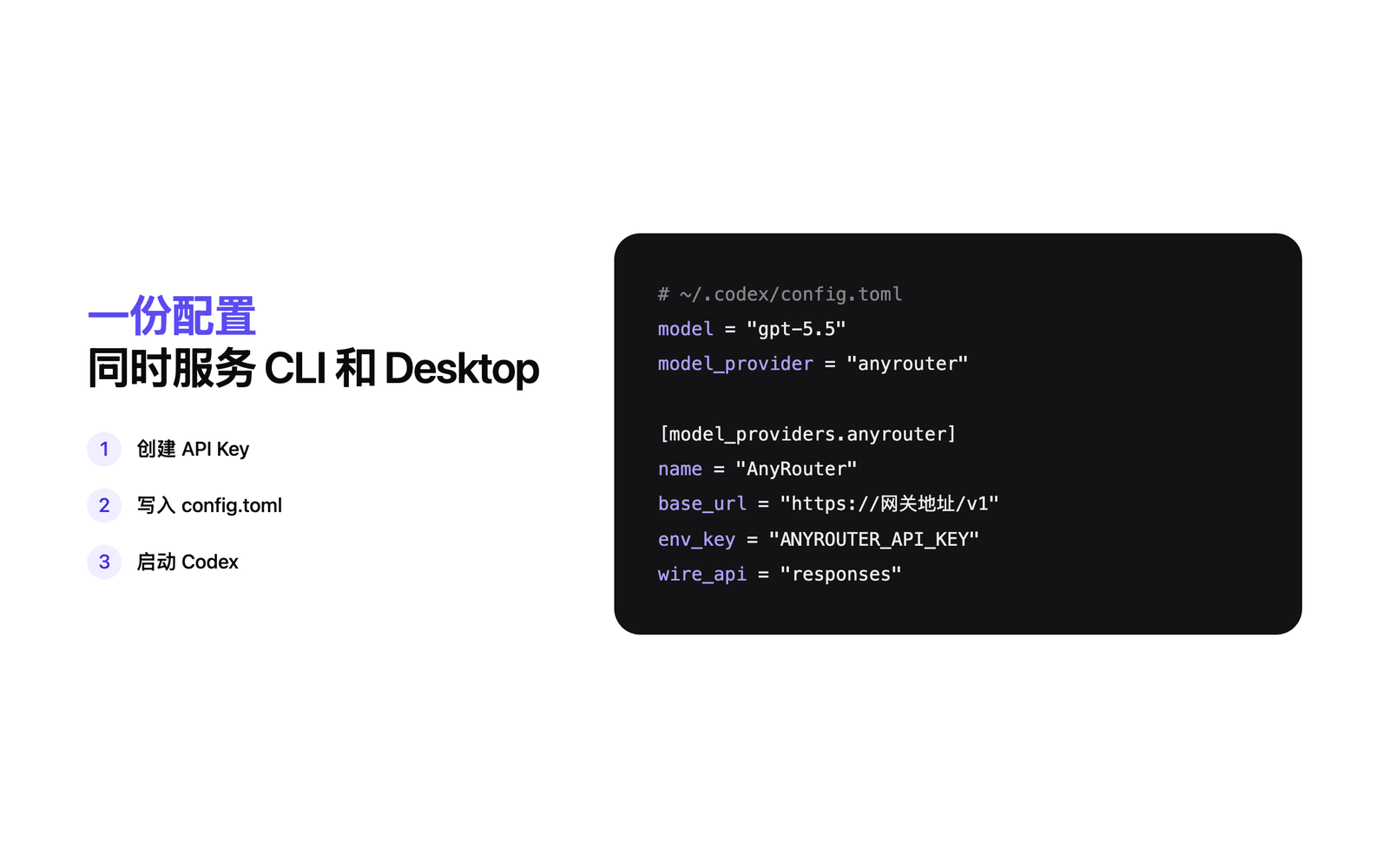 Overview of configuring Codex to use AnyRouter
1. Prepare an API Key
Register on the AnyRouter console and create an API Key. Copy it once after it is created, and never write the key into a project repository.
If you have not created an API Key yet, read Create an API Key first.
2. Install or check Codex CLI
If Codex CLI is already installed, check the version first.
codex --versionIf the command is not found, install it with npm.
npm install -g @openai/codexAfter installing, run codex --version again.
3. Edit ~/.codex/config.toml
Open ~/.codex/config.toml and merge in the config below. If the file already has model, model_provider, or [model_providers.*], change only the relevant fields instead of overwriting the whole file.
model = "gpt-5.5"model_provider = "anyrouter" [model_providers.anyrouter]name = "AnyRouter"base_url = "https://ai.cloudtay.com/v1"env_key = "ANYROUTER_API_KEY"wire_api = "responses"The API Key is not stored in the TOML. Codex reads it from an environment variable instead.
export ANYROUTER_API_KEY="<your AnyRouter API Key>"To make it permanent, add this line to your shell config file, for example ~/.zshrc.
4. Verify the CLI configuration
Run codex doctor to check configuration, authentication, and network connectivity.
codex doctor --summaryOnce there are no authentication errors, start Codex in your project directory.
cd /path/to/my-projectcodex --model gpt-5.5You can also start it with an initial prompt.
codex --model gpt-5.5 "Read this project and summarize its directory structure"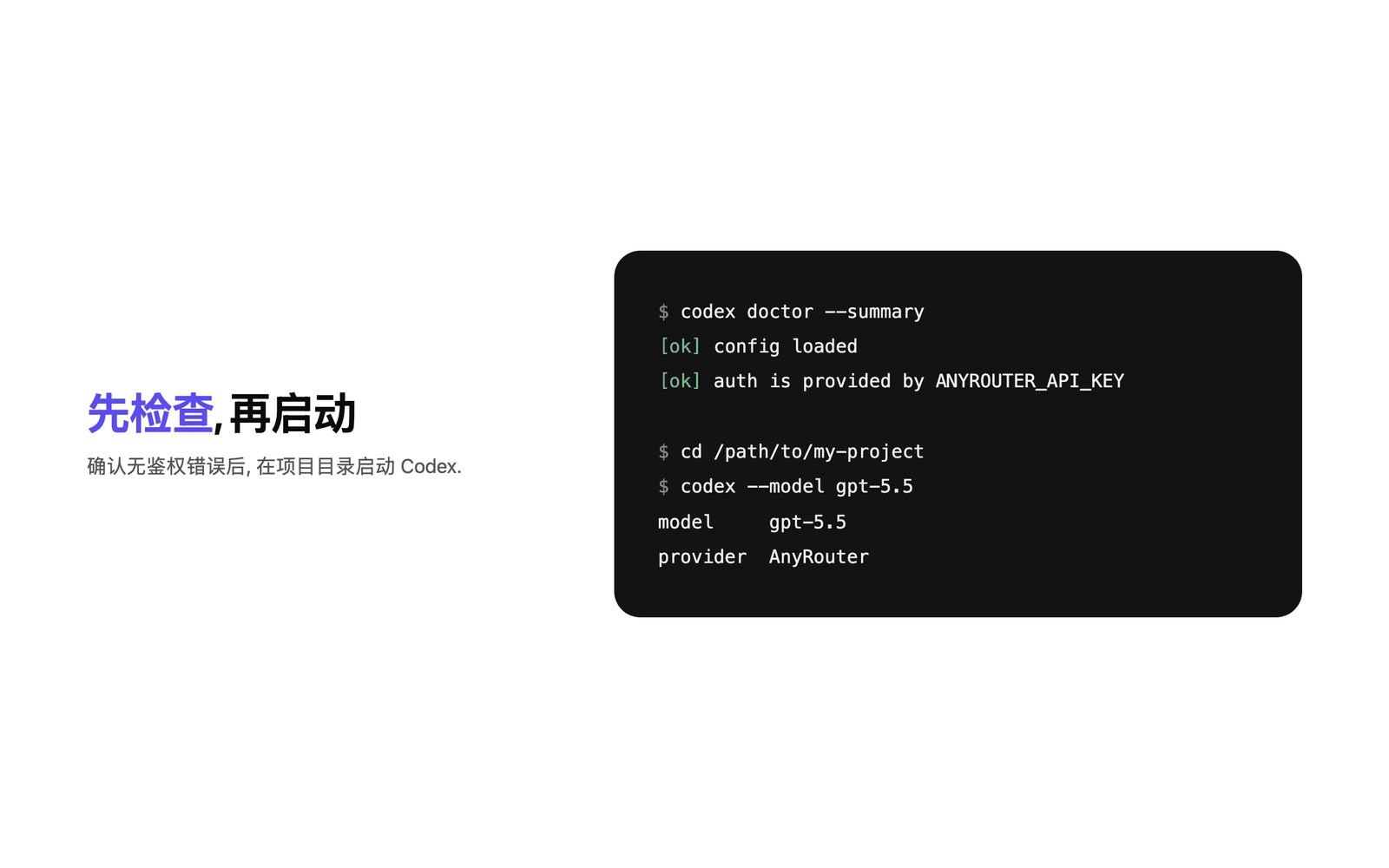 Starting Codex CLI with AnyRouter and checking the configuration
5. Launch Codex Desktop
Codex Desktop can be opened from Codex CLI.
codex app /path/to/my-projectIf the desktop app is not installed yet, codex app opens the installer. After installing, run the same command again to open the project.
Codex Desktop still reads ~/.codex/config.toml. If the desktop settings page shows model or provider options, choose AnyRouter and gpt-5.5. If there is no separate option, model_provider = "anyrouter" in the config file takes effect.
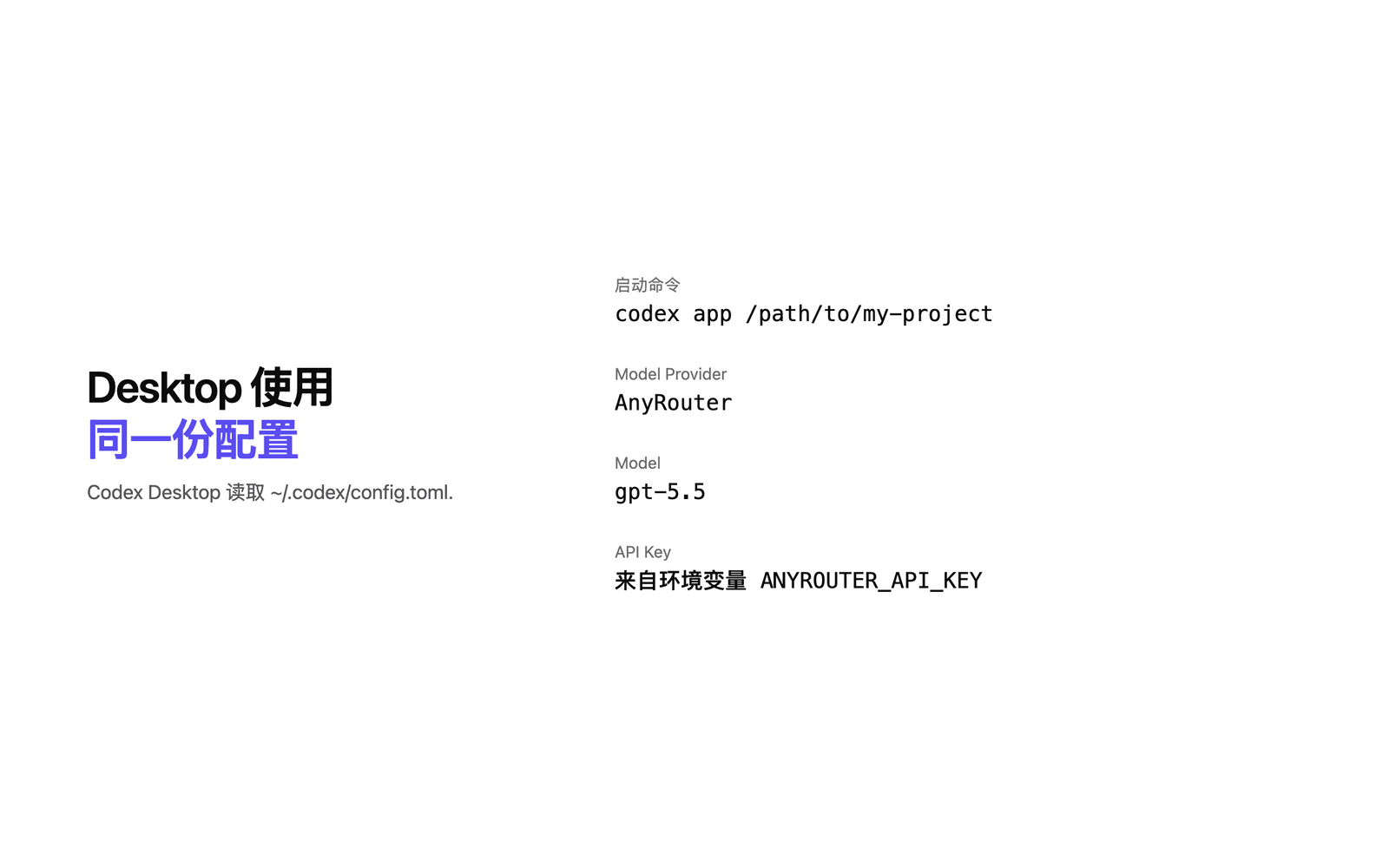 Codex Desktop reads the same AnyRouter configuration
Switch models temporarily
To use AnyRouter for a single command only, override the config with -c:
ANYROUTER_API_KEY="<your AnyRouter API Key>" codex \ -c 'model_provider="anyrouter"' \ -c 'model_providers.anyrouter.name="AnyRouter"' \ -c 'model_providers.anyrouter.base_url="https://ai.cloudtay.com/v1"' \ -c 'model_providers.anyrouter.env_key="ANYROUTER_API_KEY"' \ -c 'model_providers.anyrouter.wire_api="responses"' \ --model gpt-5.5This is handy for quick checks but not for everyday use. For long-term use, write the settings to ~/.codex/config.toml.
FAQ
401or authentication failure: make sureANYROUTER_API_KEYis an API Key created on the AnyRouter console and that the terminal launching Codex can read this environment variable.404or model does not exist: make surebase_urlishttps://ai.cloudtay.com/v1and the model ID matches the one shown on the platform.- The CLI works but the desktop app does not pick up the config: quit Codex Desktop, relaunch it with
codex app /path/to/project, and make sure~/.codex/config.tomlhas been saved. - The client reports that the Responses API is incompatible: change
wire_api = "responses"towire_api = "chat", retry, and choose a model that supports Chat Completions.