
Claude Code Desktop
Use the AnyRouter API in Claude Code Desktop.
Claude Code Desktop can send requests to the AnyRouter API through its Third-Party Inference settings.
Before you start, create an API Key on the AnyRouter platform. In this guide the API base URL is always https://ai.cloudtay.com and the auth scheme is bearer.
1. Enable Developer Mode
Open the Claude desktop app, go to Help -> Troubleshooting in the system menu, and select Enable Developer Mode.
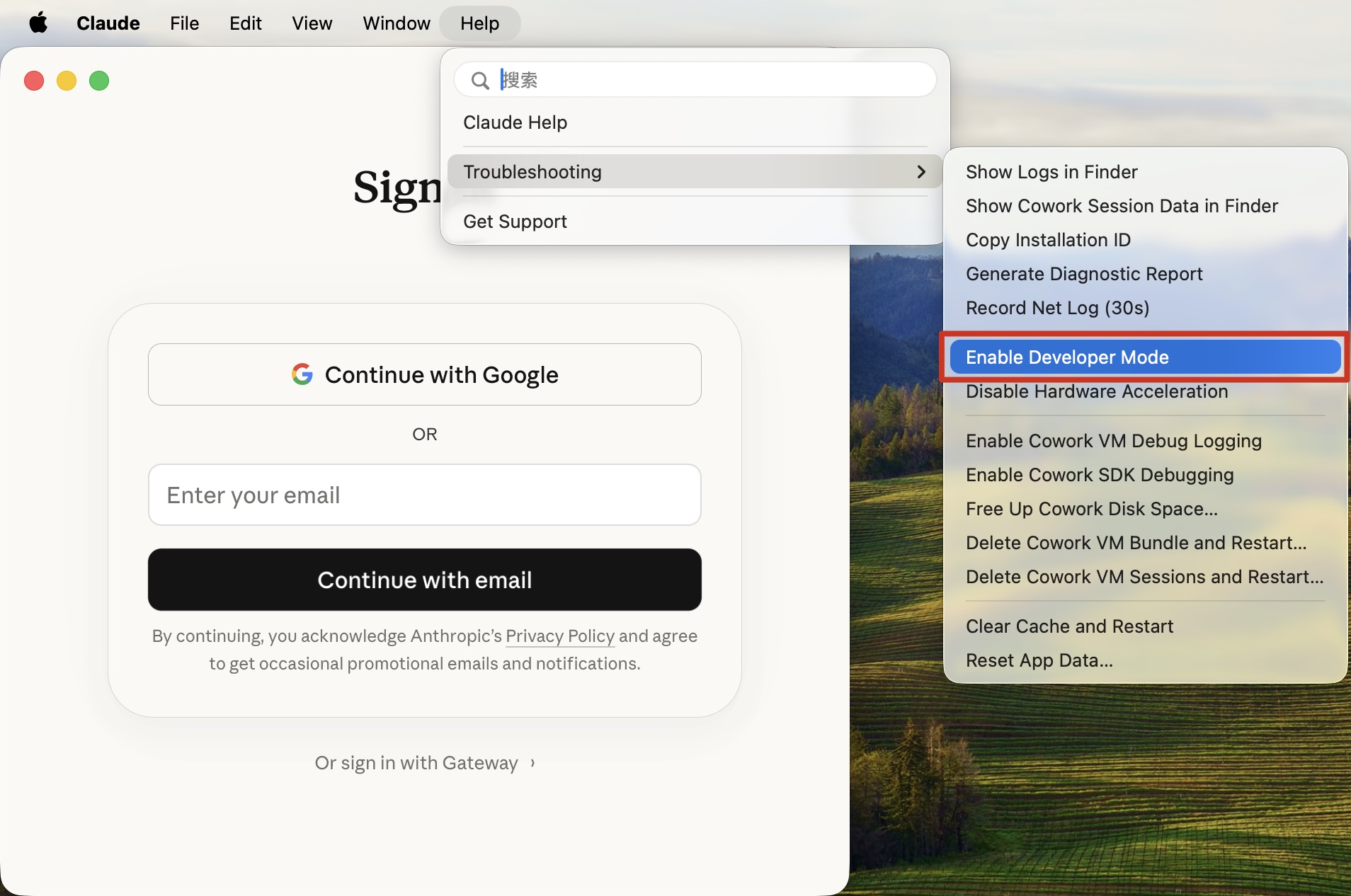 Enable Developer Mode from the Help menu
2. Open the third-party inference settings
With Developer Mode on, a Developer menu appears in the menu bar. Open Developer and select Configure Third-Party Inference....
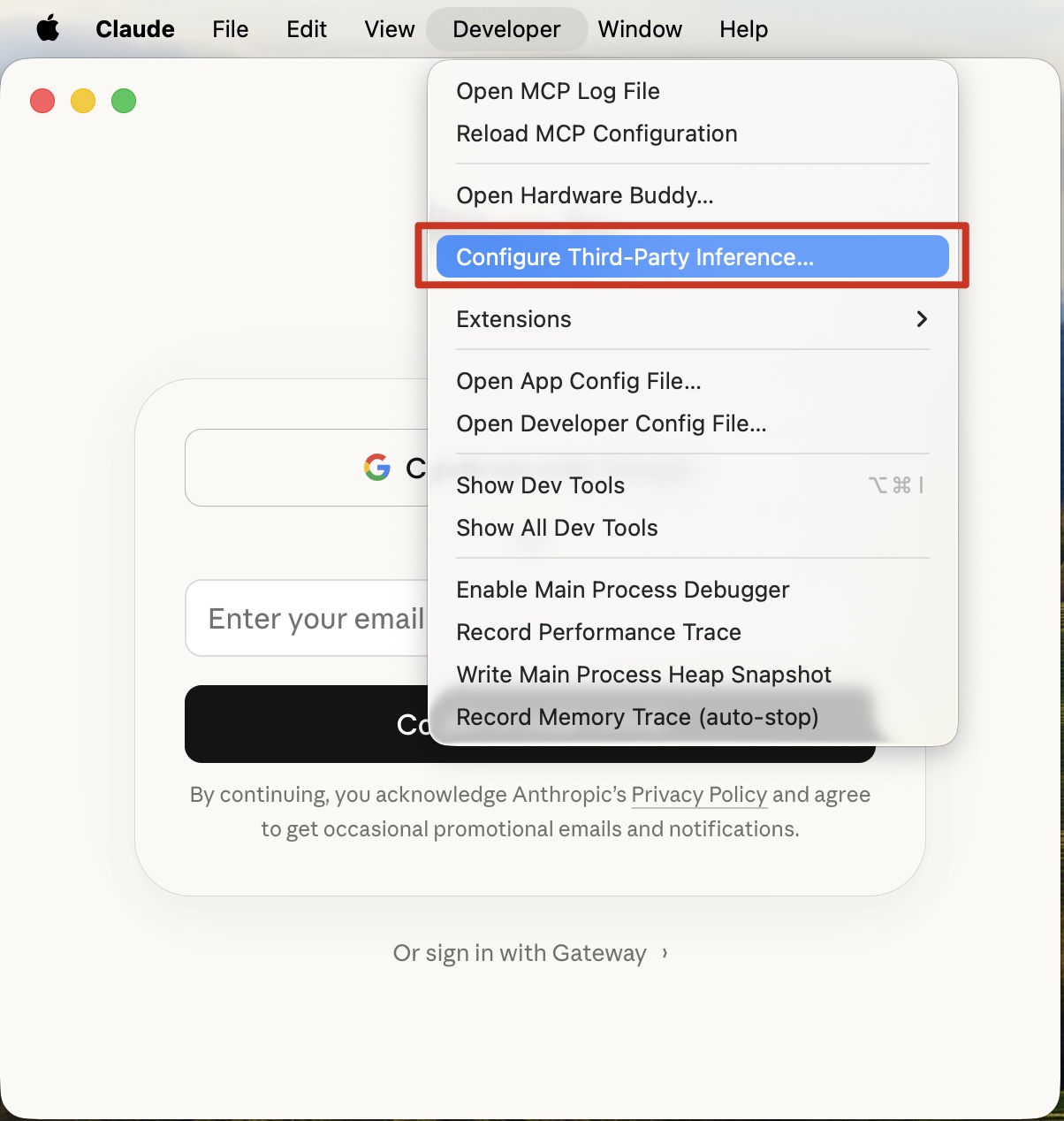 Open the Third-Party Inference settings from the Developer menu
3. Choose an API connection
On the Connection page, expand the connection type and choose the third-party API connection.
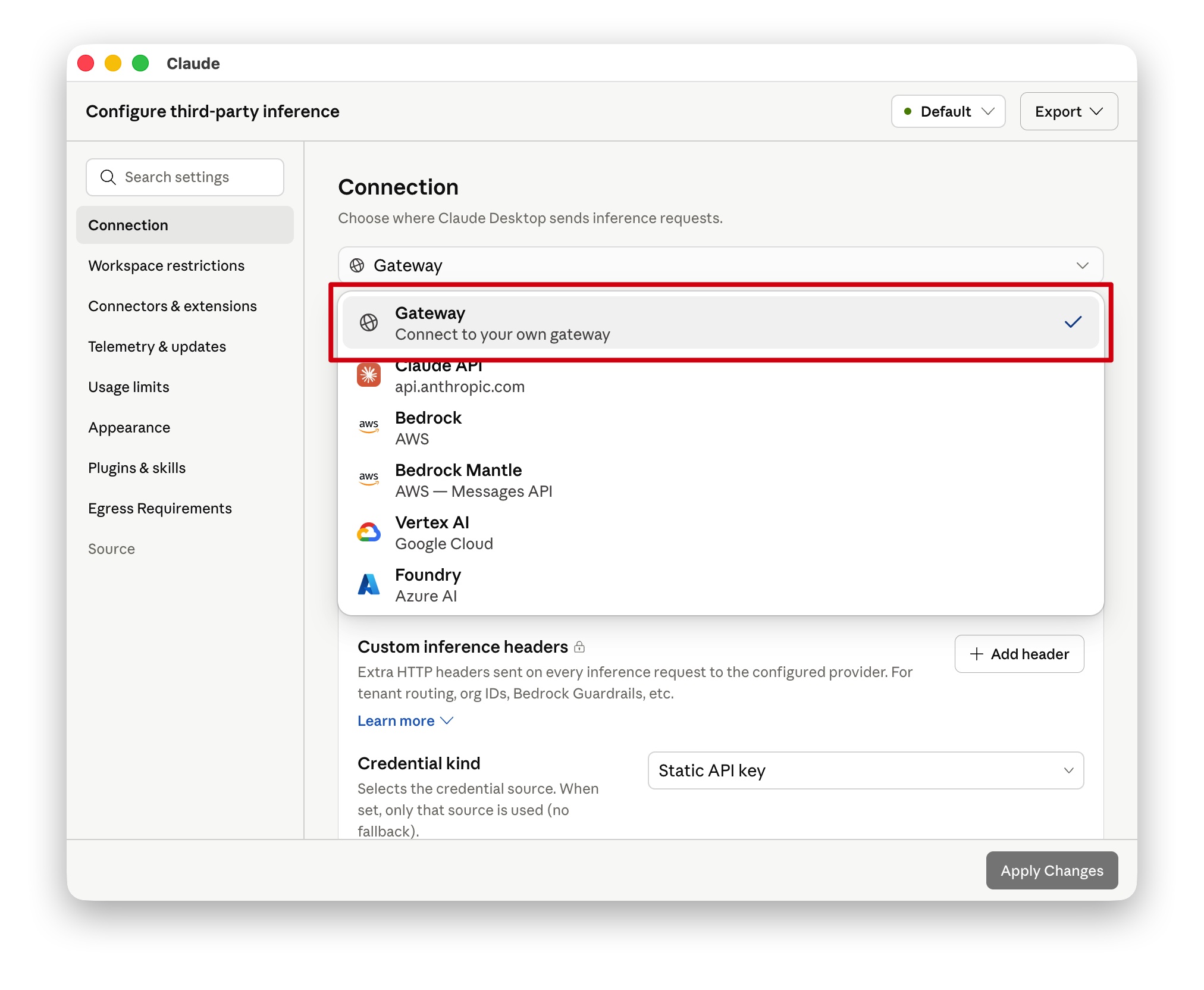 Choose the API connection under Connection
4. Enter your AnyRouter API credentials
In the credentials section, fill in:
API base URL:https://ai.cloudtay.comAPI key: your AnyRouter API KeyAuth scheme:bearerCredential kind:Static API key
When you are done, click Test connection first. Once the connection succeeds, click Apply Changes to save.
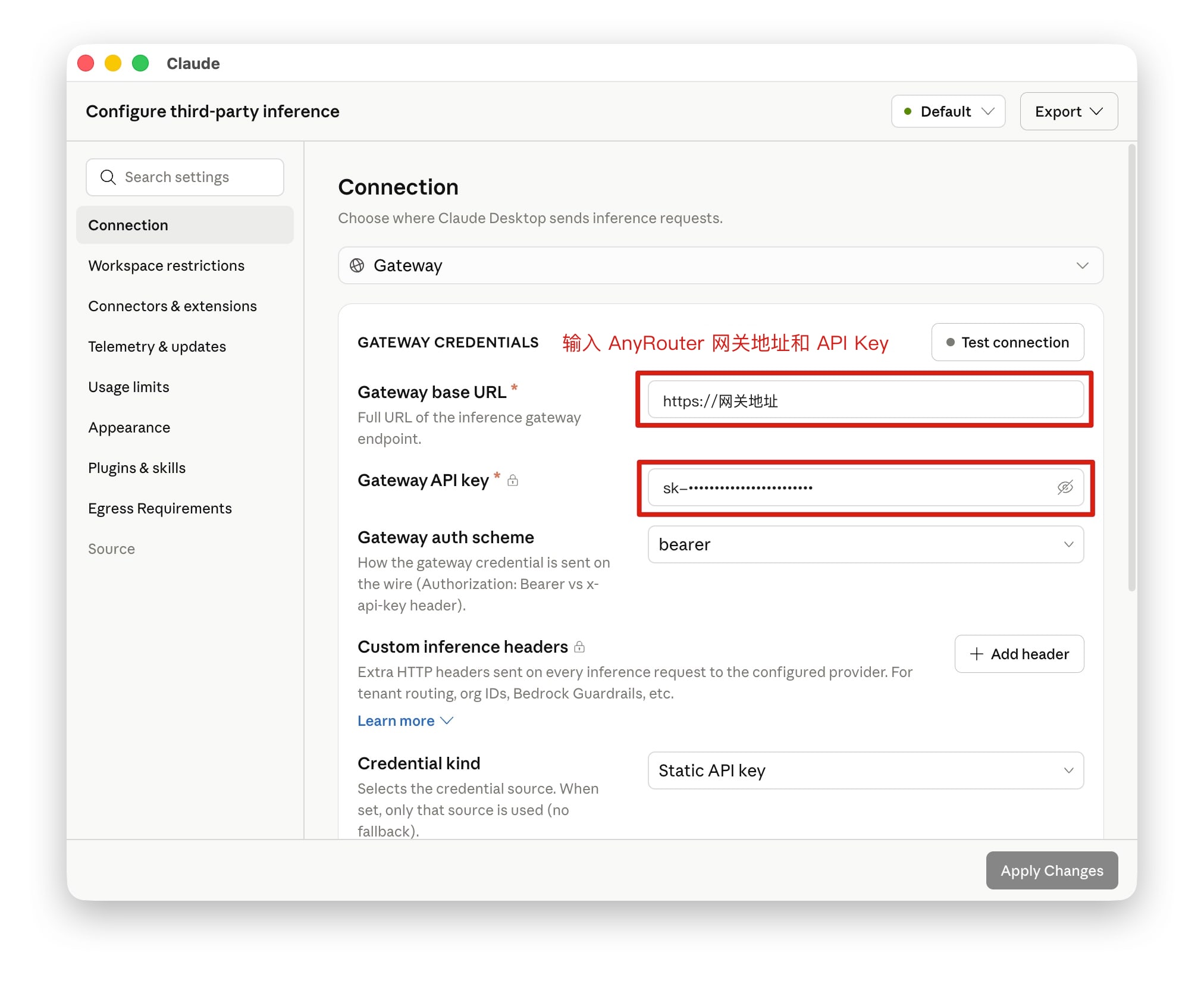 Enter the AnyRouter API base URL and API Key
5. Sign in with the API
Go back to the sign-in page and choose the third-party API sign-in option to continue using Claude Code Desktop.
If the connection fails, make sure the API Key comes from the AnyRouter platform and that no extra path is appended to the API base URL.